
Splitting Audio with a GoXLR or Other Mixer (Updated)
Revised version for clarity and accuracy
I’ve had a few people ask about splitting audio: how to do it, why you’d want to, and which way is best. This guide covers splitting audio in OBS when you use a GoXLR or another audio mixer. If you don’t have a mixer, see Splitting Twitch Audio via OBS Without a Mixer (Updated) instead.
Screenshots are from OBS Studio on Windows with a GoXLR. Menus may look slightly different in your version.
Prefer video?
I walk through splitting audio in OBS in this video:
In short:
- Want music out of your Twitch VODs? Do Part 1 and Part 2 (Steps 1–4).
- Want separate audio tracks for editing videos later? Do Parts 1 and 2, then Part 3 (Steps 5–7).
Why split audio?
- Keep music out of your VODs. You can play music live without it ending up in the recording Twitch saves.
- Remove or lower alerts in videos you edit later, like YouTube uploads.
- Balance your voice against game audio, Discord and music when editing, so you’re always clearly heard.
One thing to keep in mind: splitting audio keeps music out of the VOD, but it doesn’t change what plays live. Any music you play on stream still has to follow Twitch’s music guidelines.
Before you start
- Back up your OBS settings. Use Profile → Export and Scene Collection → Export so you can roll back if something goes wrong. You’re following these steps at your own risk, and I can’t promise they’ll work perfectly with every setup.
- You can’t split audio from old VODs. Twitch saves your stream with a single mixed audio track, so downloading a VOD won’t give you anything you can separate later. This only works for streams going forward.
Why a mixer makes this easier
A GoXLR shows up in Windows as several separate audio devices, one for each channel: System, Game, Chat, Music and Sample. It also has a Broadcast Stream Mix device, which is all of those already mixed together.
If you add each channel to OBS as its own source, OBS receives them separately and can send each one to different tracks. If you only add Broadcast Stream Mix, everything arrives already mixed and there’s nothing left to split.
How OBS audio tracks work
OBS has six audio tracks. Each audio source can be sent to any combination of them. You then choose which track goes live, which goes to the Twitch VOD, and which ones get saved in your recordings. This is the layout I use:
| Track | Used for | What goes on it |
|---|---|---|
| 1 | Live stream | Everything |
| 2 | Twitch VOD | Everything except GoXLR Music |
| 3 | Recording: main audio | Your must-haves, usually mic and GoXLR Game |
| 4–6 | Recording: extras | Your choice, e.g. alerts, GoXLR Chat or GoXLR Music on their own tracks |
Part 1: Get each GoXLR channel into OBS
Step 1: Send each app to its own GoXLR channel
Splitting only works if each app plays through its own channel. In Windows, open Settings → System → Sound → Volume mixer and set the output device for each app:
- Your game → Game
- Discord → Chat (you can also set this in Discord under Voice & Video → Output Device)
- Spotify or your music app → Music
- Everything else → System, which works well as your Windows default output
Step 2: Add each GoXLR channel as an OBS source
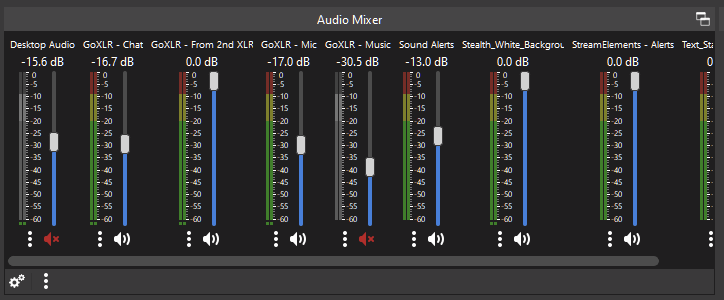
- In Sources, click + and choose Audio Output Capture. Pick the GoXLR Game device and name the source something clear like GoXLR – Game.
- Repeat for Chat, Music and System (and Sample if you use the sampler).
- Add your mic with Audio Input Capture and name it GoXLR – Mic.
- Add your alert browser sources (StreamElements and so on) and check Control audio via OBS in each so they show up in the Audio Mixer.
Don’t add Broadcast Stream Mix as well, or you’ll hear everything twice. I also keep Desktop Audio muted, since the GoXLR channels already cover everything Windows plays.
Part 2: Keep music out of your Twitch VODs
Step 3: Turn on the Twitch VOD track
- Open Settings → Output.
- Set Output Mode to Advanced.
- On the Streaming tab, set Audio Track to 1. This is what your viewers hear live.
- Check Twitch VOD Track and select 2. This is what Twitch saves in your VOD.
- Click OK.
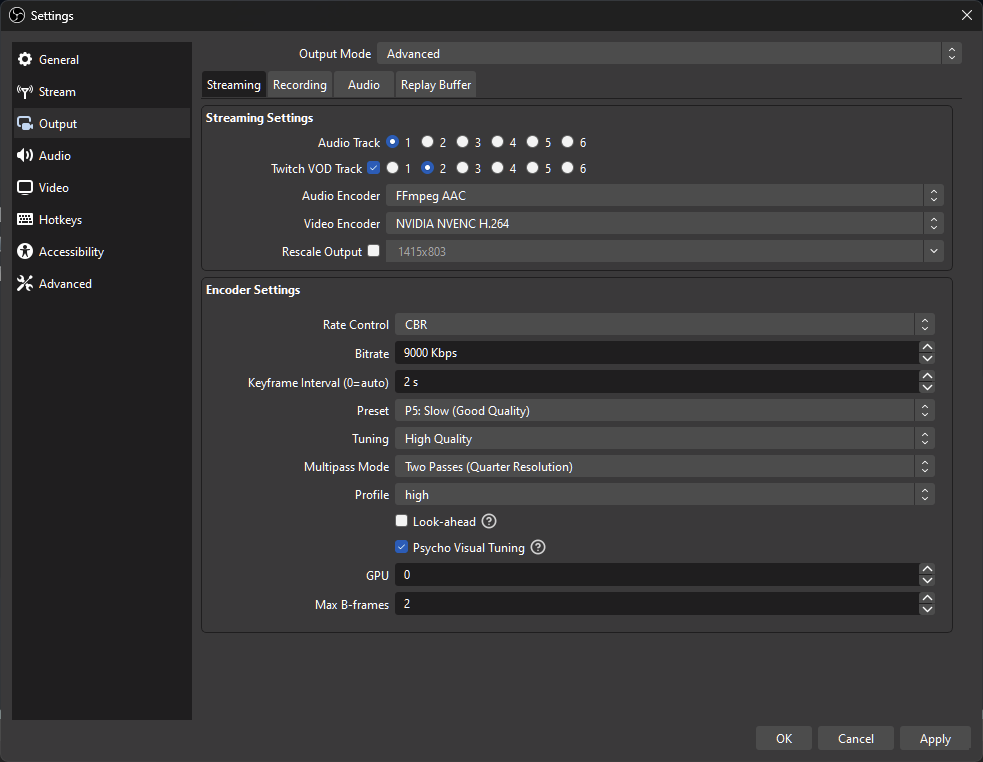
The Twitch VOD Track option only appears when your stream service is set to Twitch.
Step 4: Take GoXLR Music off the VOD track
- Open Advanced Audio Properties, either from the gear icon at the bottom left of the Audio Mixer or from Edit → Advanced Audio Properties.
- Uncheck Active Sources Only in the bottom left. Otherwise you’ll only see sources in the scene you’re on.
- Find GoXLR – Music and uncheck Track 2. Leave Track 1 checked.
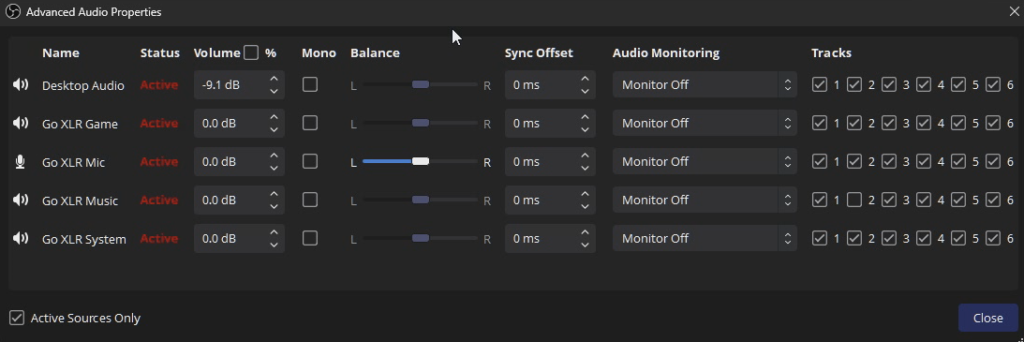
That’s it for Part 2. Your music still plays on the live stream through Track 1, but Twitch stores Track 2 in your VOD, and Track 2 has no music.
Part 3: Separate tracks for editing
If you want more than music-free VODs, for example to edit streams into YouTube videos, you need to record locally with OBS while you stream. Twitch only keeps one track, so the separate tracks have to come from your own recording.
Check your drive space first. Recordings get big. File size depends mostly on your recording bitrate. My last 22-minute recording was just over 1 GB, which works out to about 3 GB per hour, and higher-quality settings can use several times that. If you plan to record several streams and edit them together, make sure you have plenty of room.
Step 5: Assign your sources to Tracks 3–6
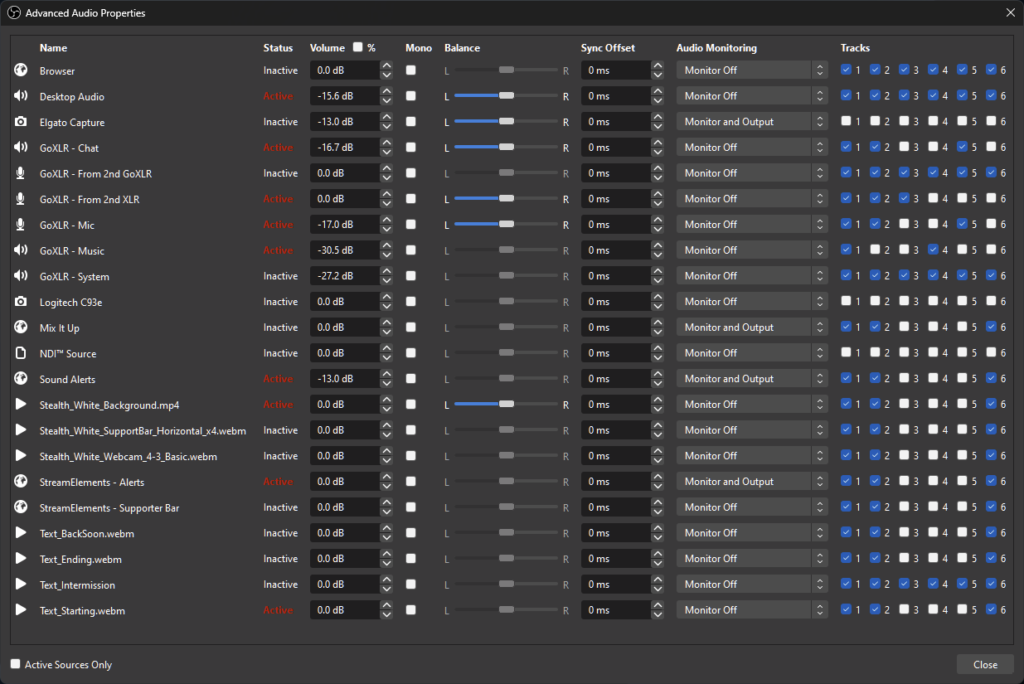
- Back in Advanced Audio Properties, uncheck everything in Tracks 3, 4, 5 and 6 so they start empty. Leave Tracks 1 and 2 as you set them in Part 2.
- On Track 3, check the sources you’d always want in a video. For gaming, that’s usually GoXLR Mic and GoXLR Game. For Just Chatting, make sure your mic is there.
- Use Tracks 4–6 for anything you want to control separately while editing. For example, put all your alerts on one track so you can keep them in some spots, cut them in others, or turn them down if they’re louder than your voice.
Step 6: Turn on all six tracks for recording
This step is easy to miss. Without it, your recording only has Track 1 and all your splitting is lost.
- Open Settings → Output and go to the Recording tab.
- Check Audio Track 1, 2, 3, 4, 5 and 6.
- Set Recording Format to MKV. MKV keeps all the audio tracks, and if OBS or your PC crashes mid-stream you keep everything recorded up to that point.
If your editor needs MP4, use File → Remux Recordings in OBS to convert the MKV afterward. It’s quick and doesn’t lose quality.
Step 7: Edit with separate tracks
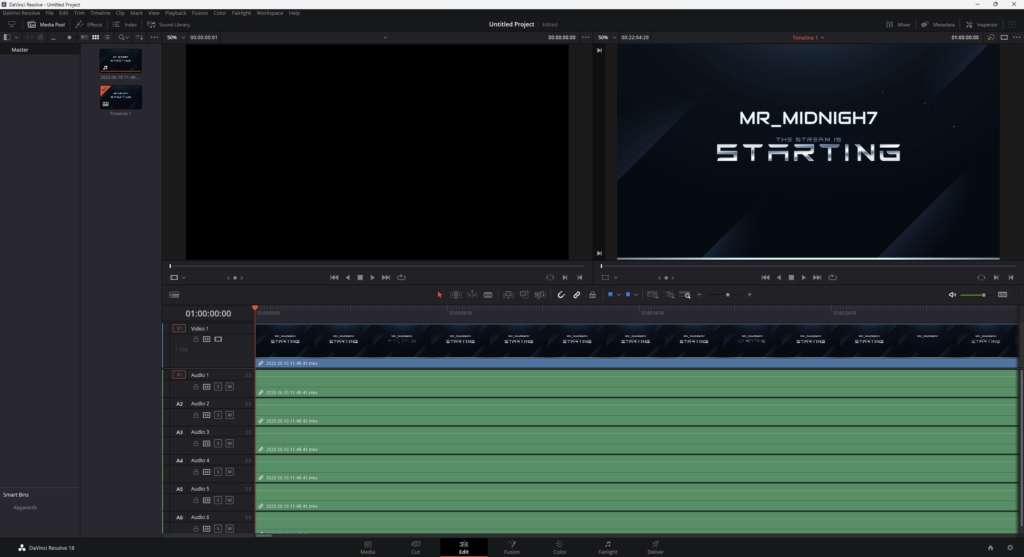
Now when you stream and record at the same time, you get a video file with six audio tracks. Open it in your editor (I use DaVinci Resolve) and you’ll see each track separately.
Tracks 1 and 2 are your live and VOD mixes, so you can usually mute or delete them right away. That leaves Tracks 3–6, which you can adjust, cut or delete however suits the video.
Using a different mixer
The same approach works with any mixer or audio software that gives each channel its own Windows audio device, such as Elgato Wave Link or Voicemeeter. Send each app to its own channel, add each channel to OBS as its own source, and follow the rest of the steps the same way.
Wrapping up
This is the setup I use. There are other ways to do it, including newer AI-based editing tools that can separate audio after the fact, but this one is free and reliable. Other streaming software probably works in a similar way, but I’ve only used OBS, so I can’t say for sure. I hope this helps!
This post updated with AI and reviewed by the author