My streaming rig is a pre-built computer from HP, an HP Z2 Tower G4 Workstation. I went with a pre-built system for the streaming rig for a few reasons. The main one is that I like to have at least one system with a no-worries warranty so I don’t have to deal with issues that could come up. My gaming rig is custom built; the streaming rig doesn’t need to be. Last updated October 2026.
Specifications
- CPU – Intel Core i9-9900K (8 cores / 16 threads)
- RAM – 32 GB (2 x 16 GB Samsung DDR4-2666)
- GPU – NVIDIA GeForce RTX 2070 Super
- Drives – 2 x 512 GB NVMe M.2 (KIOXIA and Samsung PM981)
- Monitors – 2 x ViewSonic VX2768-2KPC 27 inch 1440p
- Monitor Arm – Huanuo
- Keyboard – EVGA
- Mouse – EVGA
- Speaker – High Sierra (custom branded)
- Stream Control – Elgato Stream Deck
Software
- Windows 11 (version 26H2)
- OBS Studio
- Elgato Stream Deck with the OBS plugin
- Elgato 4K Capture Utility
- NDI Tools
- Animaze
- Discord
- Logitech G HUB
Computer Configuration
I am running Windows 11 on the NVMe drive. While I toy around with Linux on occasion, I have not moved to it full time for day-to-day usage.
To actually run my stream I am using OBS Studio. For a while I was using Streamlabs OBS, however I find myself liking OBS Studio quite a bit more, and if I do decide to migrate my setup to a Linux distro then it will be an easier transition, as OBS Studio runs on multiple operating systems. The Stream Deck and its OBS plugin let me switch scenes and mute sources with a button press, and NDI Tools is installed on both my gaming and streaming rigs so I can send video and audio between them over the network.
This rig also has two monitors, which is very nice and almost a must-have nowadays. The dual monitors allow me to easily move between OBS and Discord as well as keep an eye on other streams and the different dashboards around my stream.
OBS Configuration
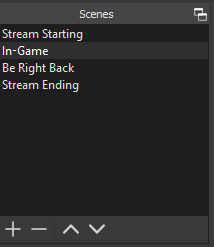
I purchased the Stealth stream package from Nerd or Die. Using that I have configured 4 scenes: Stream Starting, In-Game, BRB, and Stream Ending. Each scene has my alerts source configured on it.
I have configured a few settings for my microphone to accommodate my keyboards of choice. Because I usually use Cherry Blue or equivalent keyboards, I have a Noise Gate filter set to open at -26 dB and close at -35 dB. In addition I have noise suppression set at -30 dB, so that even while I am talking it does a very good job of filtering out my keystrokes. Finally, I have a Limiter filter set up so that louder noises don’t get through, currently configured at -6 dB.
So all in all, those are the major points of my current streaming rig setup. There isn’t really anything too fancy going on, and it fits my needs well for the small amount of streaming that I do.
This page updated with AI and reviewed by the author